


Many people today enjoy YouTube videos far more as audio than as full videos, doing long talks, podcasts, music mixes, or converting lectures into something they can listen to. This growing preference comes down to the ease of different methods to convert YouTube videos into audio files. Now with so many simple online ways, users can quickly turn videos into MP3 or other audio formats without installing apps or software. These tools save time, reduce data usage, and make content more accessible anytime, anywhere. This read breaks down into quick ways you can convert YouTube video to audio online free.
Why Convert YouTube Videos to Audio?
People convert YouTube videos to audio for reasons that go deeper than just convenience. Most videos on YouTube are really about the sound: the voice sharing a story, the expert explaining an idea, the music carrying emotion, or the conversation sparking thoughts. In a world where everyone is pushed to look at screens all the time, choosing audio gives users their time and attention back. Audio allows them to listen while walking, working, or resting, without needing to stay stuck to a screen. This creates freedom to learn or enjoy content in a more relaxed and flexible way.
Following are the ways you can convert YouTube video into audio:
1. Using an Online Converter (YTMP3)
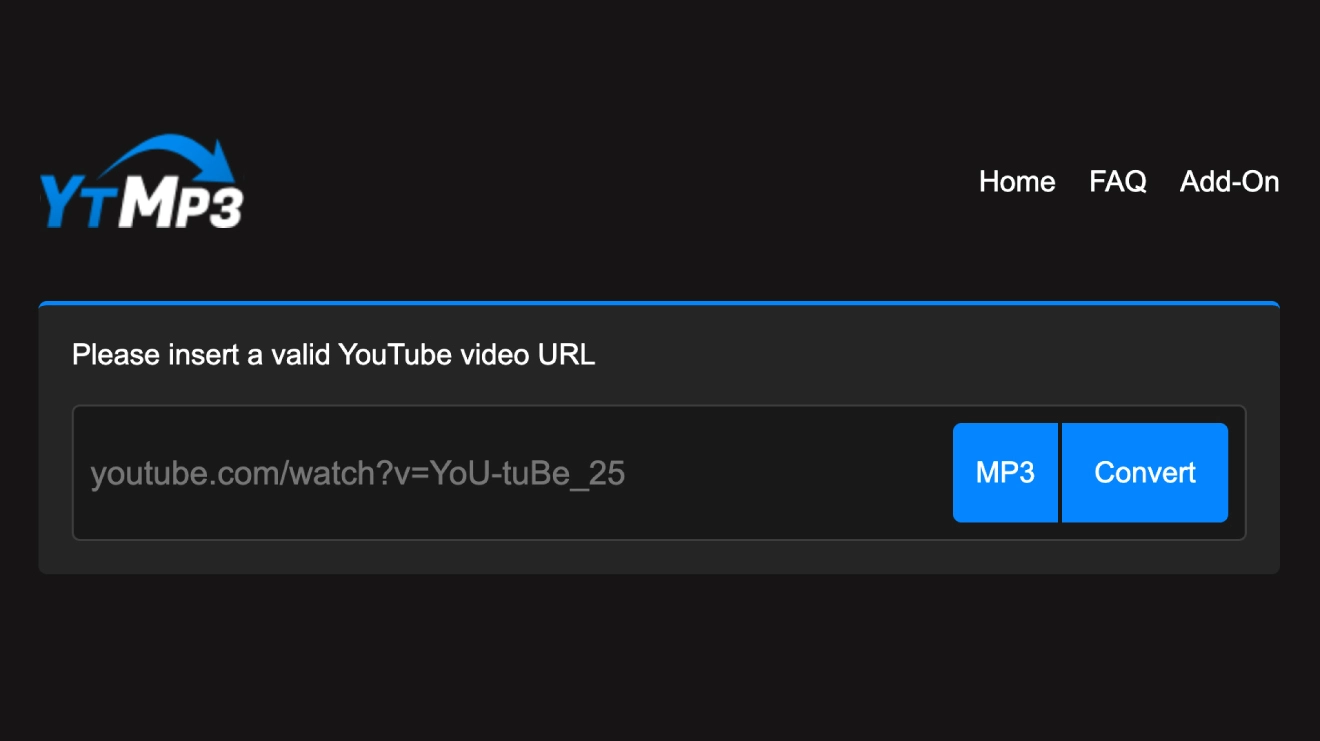
This is a quick web-based method without installing anything. It’s free but may have ads and slight quality loss.
- Go to a site like ytmp3.nu or similar.
- Copy the YouTube video URL from your browser.
- Paste it into the site’s input box.
- Click “Convert” (it defaults to MP3).
- Click “Download” to save the MP3 file.
2. Using Desktop Software (4K Video Downloader)
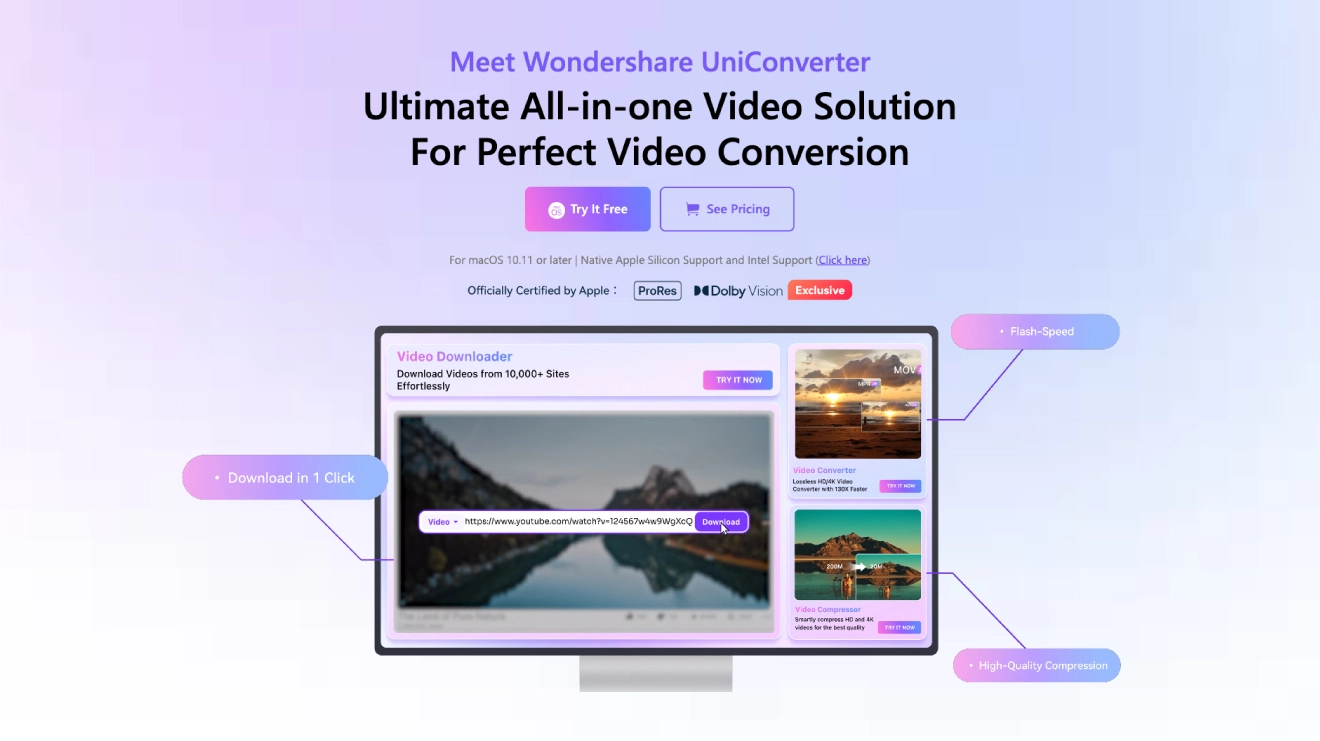
This free app downloads and converts directly, preserving better quality. Works on Windows, macOS, Linux.
- Download and install 4K Video Downloader from its official site.
- Copy the YouTube video URL.
- Select “Extract Audio” and choose MP3 format.
- Pick quality (e.g., high) and click “Download.”
- The audio saves automatically to your chosen folder.
3. Using VLC Media Player (After Downloading the Video)
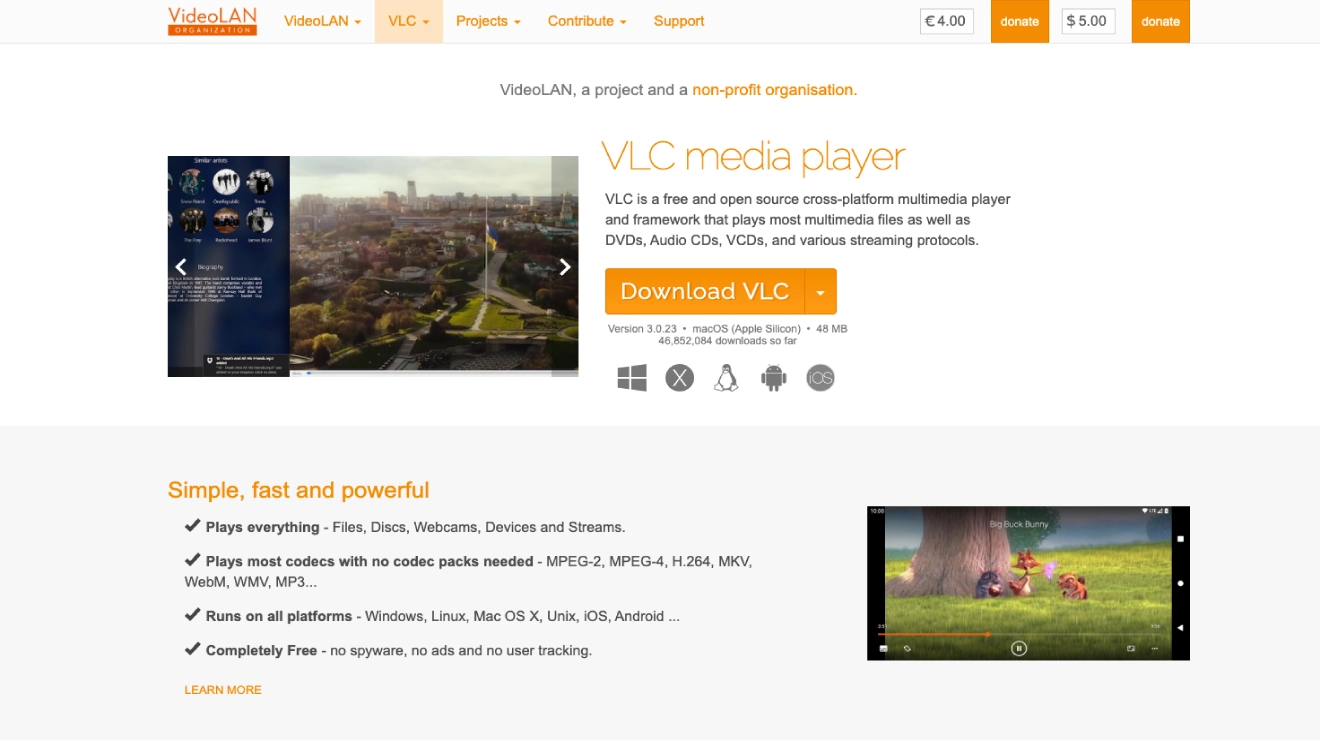
VLC is a free player that converts local files to audio.
- First download the YouTube video as MP4 using a safe downloader or YouTube Premium.
- Install VLC if you don’t have it (free from videolan.org).
- Open VLC, go to Media > Convert/Save.
- Click “Add” and select your downloaded MP4 file.
- Click “Convert/Save,” choose Audio – MP3 profile.
- Set a destination file and click “Start” to convert.
4. Using online App Version (ReHear)
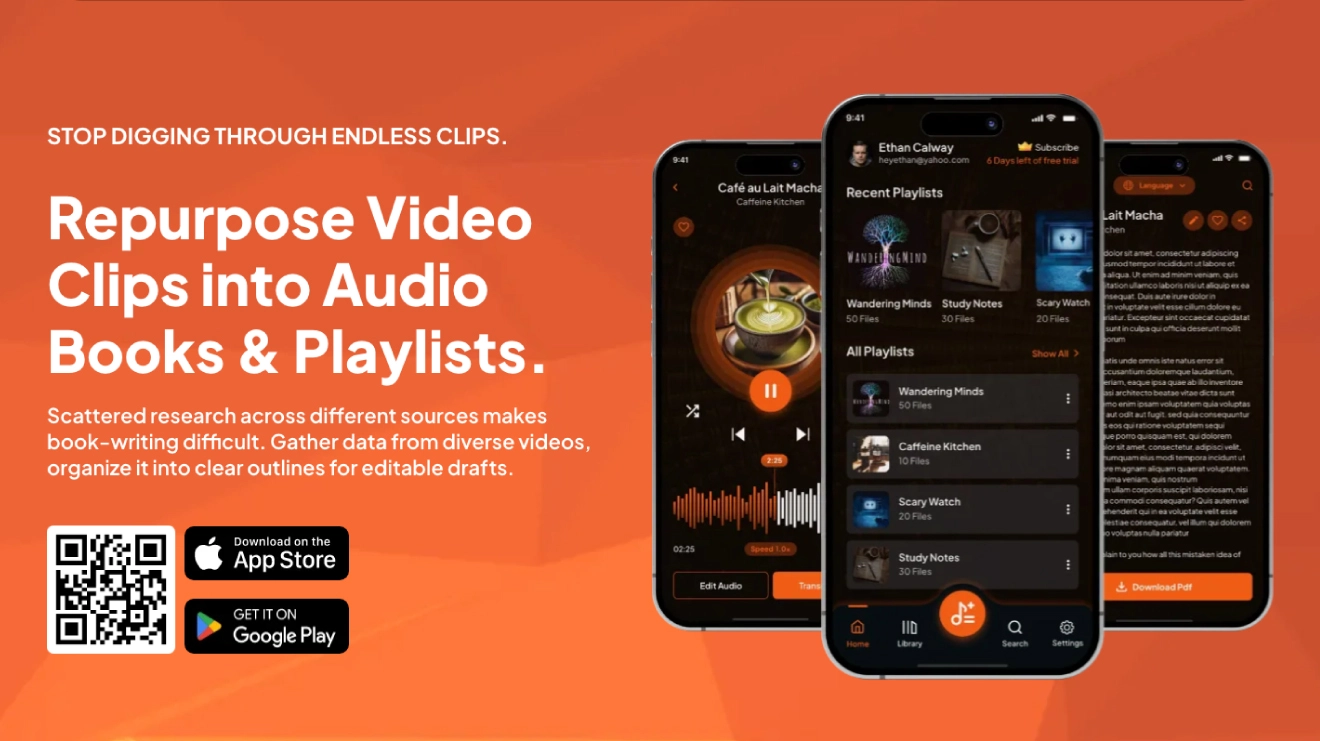
You can use an app with a free plan that performs video-to-audio conversion for YouTube videos. ReHear is a great mobile app (with some web support) that starts with a free plan. It lets you handle videos, convert them to audio, create playlists, transcribe, and edit without upfront costs.
The app does not directly download from YouTube (due to YouTube’s rules). First, download the YouTube video to your phone using a separate downloader or YouTube Premium’s offline feature.
- Open YouTube, find the video, and download it (if you have Premium) or use a trusted downloader app/site to save the MP4 file to your gallery or files.
- Download the ReHear app from your app store (iOS or Android) or visit their site.
- Tap “Start Free Trial” or “Sign Up.” Enter your email and create a password.
- Verify with the OTP code sent to your phone. Log in to reach the main dashboard.
- Once logged in, you’ll see options for uploading files, creating playlists, and managing content.
- Tap the upload icon to download YouTube video from your gallery or files.
- Select the video from your library or playlist. Tap “Edit Audio” or “Convert to Audio.”
Wrapping up
An app is the smartest choice over media players, desktop software, or online converters because it puts everything you need right on the phone which you already carry everywhere. Media players, desktop tools, and online websites can only play files, and you can’t convert or organize them. These online sites are slow, crowded with ads, risky for privacy, and usually give lower-quality results.
So next time you find a great YouTube video you wish you could just listen to, don’t settle for staring at your screen. Grab your ReHear app and convert video into audio the smart way. Build your own portable library and discover how much richer your day feels when great content follows you everywhere.