

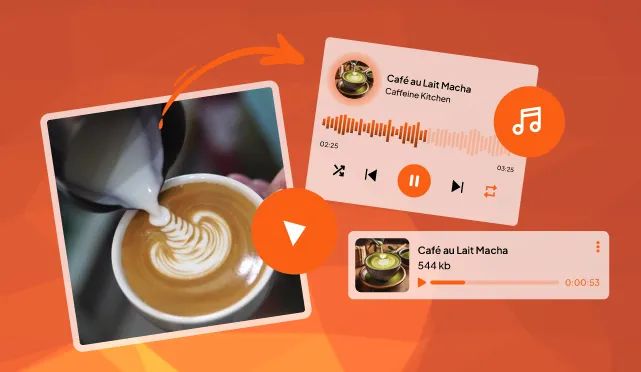

People often feel the need for a video to audio converter tool or software because videos frequently contain valuable audio content. Now getting out the sound without any visual distractions from larger file sizes is the simplest yet the most liberating thing.
People often run into headaches when trying to pull audio out of videos, like ending up with files that sound fuzzy or distorted because the tool strips away too much quality during the process, or worse, getting a file with no sound at all after waiting ages for it to finish.
These 5 audios to video converter tools can support a wide range of formats reliably, processes files quickly (even large or long ones), and even offer safe, ad-free options to protect offline privacy. Knowing them can easily let users deliver high-quality output without losing audio quality.
1. ReHear
The best overall video to audio converter with powerful editing
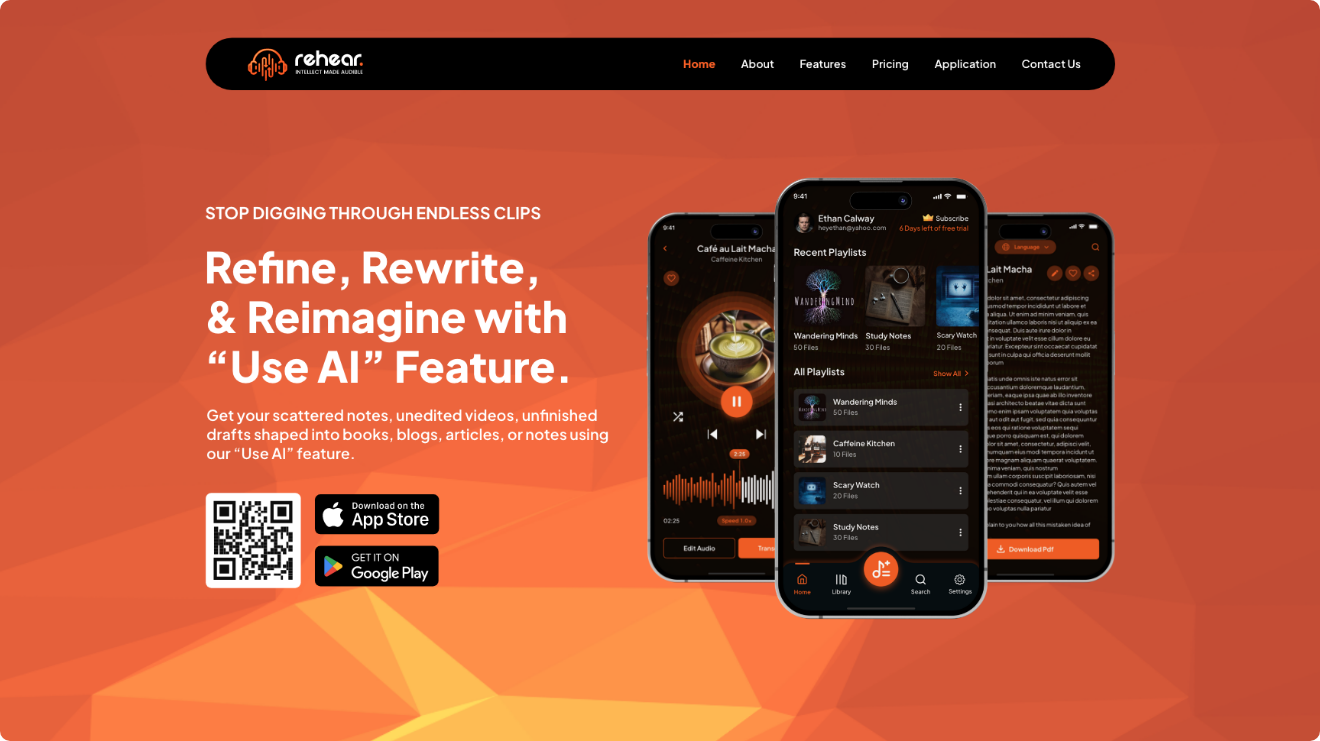
ReHear is a mobile-focused app designed to convert video into searchable clean audio playlists, audiobooks, or editable transcripts, making it easy to repurpose content for on-the-go listening or deeper insights. It works primarily as an iOS/Android app, where you upload or import videos, extract and refine the audio, add transcripts, and build organized playlists. To extract audio from a video, upload clips to a project or library, use the built-in tools to trim and edit, then export audio tracks or full playlists.
Features:
- Accurate transcription with multi-language support
- Shape transcripts into articles, summaries, blogs, or notes
- Built-in audio editing with trim fluff, merge clips, bookmark key moments features
- Smart search across audio, transcripts, and playlists for exact quotes or topics
- Easy playlist creation that shuffle, reorder, rename, and combine clips
- Batch processing for handling multiple videos at once
Pros:
- Free plan limits conversions, playlist features, and exports
- Strong organization tools like tagging, categorizing, and effortless reordering
- Converts refine raw content into polished outputs without need of additional apps
- Multi-lingual transcripts break language barriers
- Instant audio search saves hours of scrubbing through files
- Generous free plan with basic conversions and organization
- Cloud sync and exports available on paid tiers for seamless device switching
- Focuses on privacy with local processing options where possible
Cons:
- Requires subscription for unlimited usage, advanced tagging, and flexible formats
ReHear is a solid choice that lets you edit and repurpose, starting free and subscribing to paid subscription for added features.
2. Descript
A versatile choice for converting video to audio with clean export
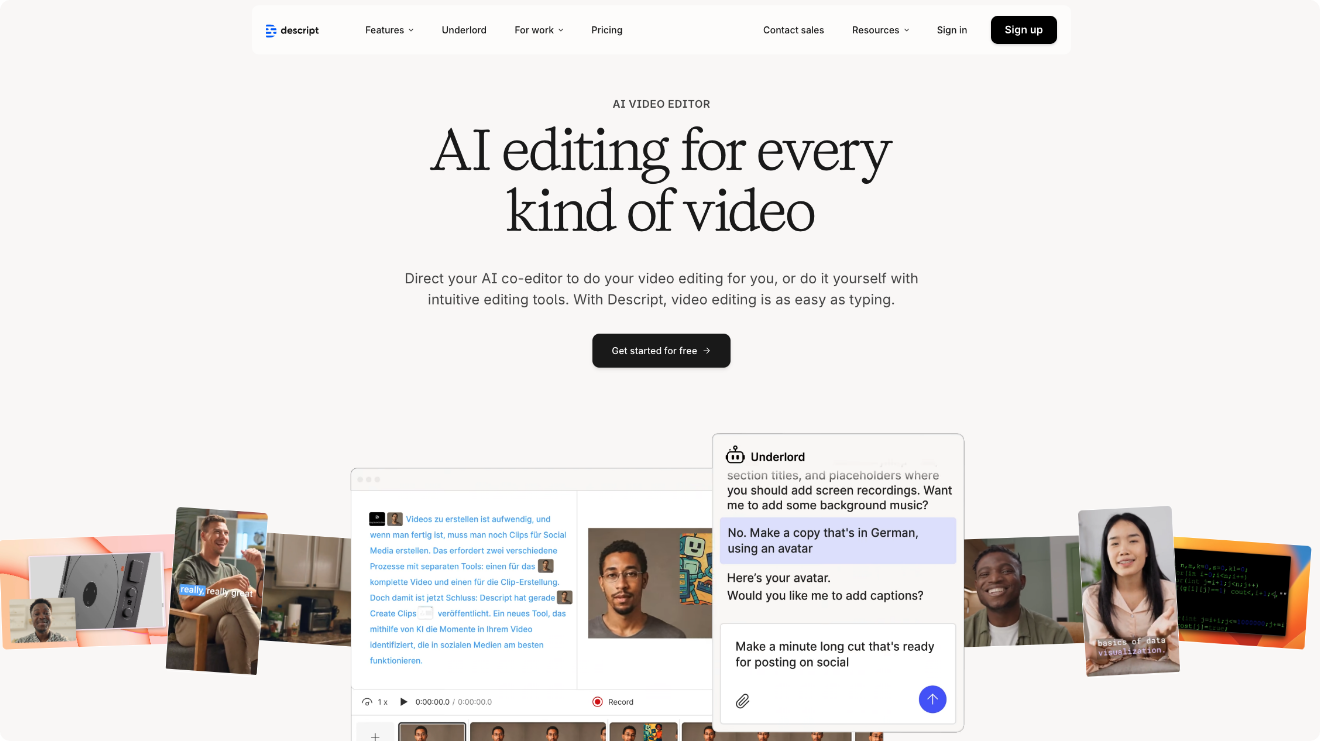
Descript stands out as a versatile all-in-one tool for audio and video editing that makes extracting sound from videos straightforward and high-quality. Available as a desktop app for Mac and Windows (with some web features), it lets you easily import video, detach or focus on the audio track, and export it cleanly.
Features:
- Accurate automated transcriptions that power text-based editing
- Overdub voice-cloning to correct or add audio seamlessly
- Automatic filler word removal for cleaner tracks
- Studio Sound to eliminate background noise and enhance clarity
- Built-in stock library of royalty-free music and sound effects
Pros:
- Intuitive interface that feels like editing a document, perfect for quick extractions and tweaks
- Preserves excellent audio quality with no noticeable loss
- Supports common export formats like MP3, WAV, and AAC
- Free plan available with basic conversion and one hour of transcription per month, watermark-free for audio
Cons:
- Free version limits video exports to 720p with watermarks and caps monthly usage
- Some advanced formats or very large files may need paid plans for full access
- There is no native Linux support though web version that works in the browsers
Descript is worth trying, especially if you’re after a converter that not only pulls audio from video reliably but also lets you polish, edit, and repurpose it.
3. Freemake
Best free desktop video to audio converter for broad format support
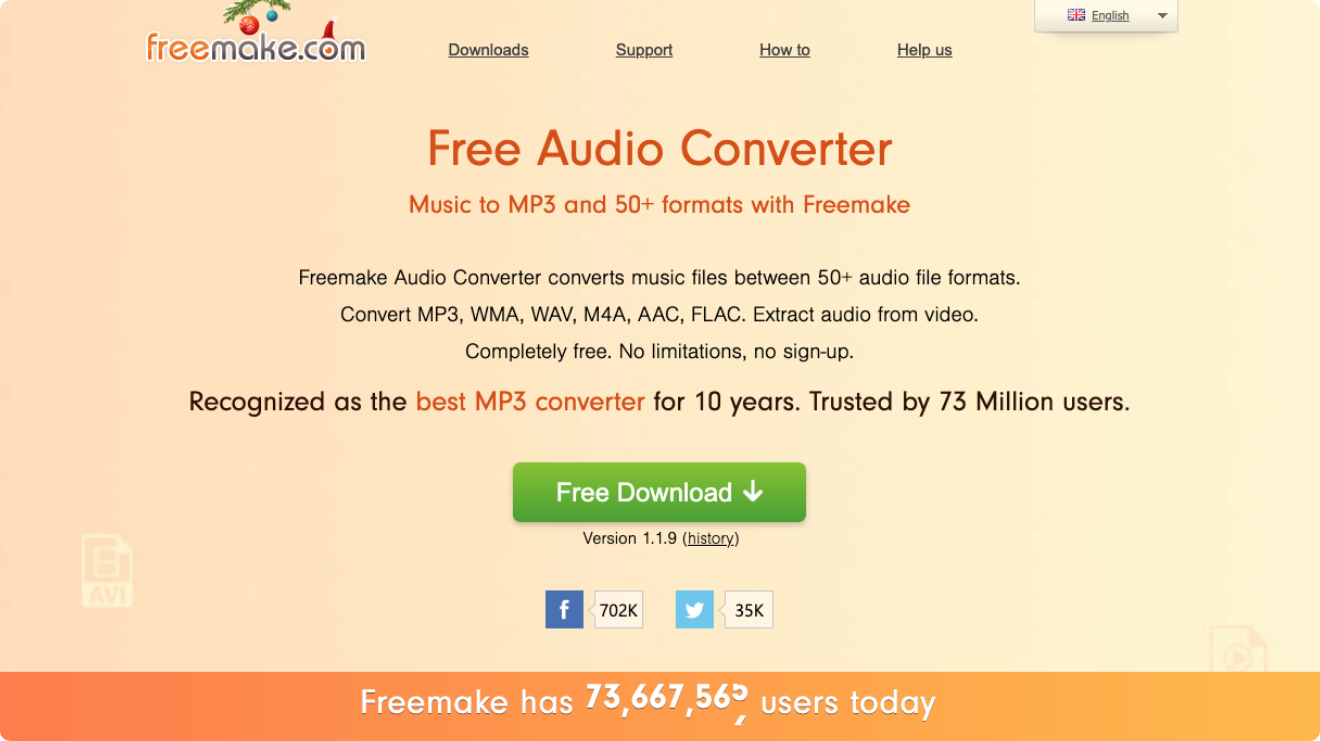
Freemake Video Converter is a user-friendly Windows-only software designed for converting videos between hundreds of formats, extracting audio tracks, ripping DVDs, and performing basic edits. It runs as a desktop app on Windows (no Mac or Linux native support), where you can drag-and-drop files or import from various sources. To extract audio from a video, simply add video file via the +Video button or drag-and-drop, select an audio format like MP3 from the bottom presets or custom options, adjust settings if needed, and hit Convert for a fast result.
Features:
- Wide support for over 500 input/output formats including video (MP4, AVI, WMV, MKV, FLV), audio (MP3, AAC, WMA, WAV, FLAC), and images
- Basic video editing tools like trimming, rotating, merging clips, adding subtitles, and creating photo slideshows with music
- Preset profiles for devices such as iPhones, Androids, game consoles, and tablets
- Direct upload to YouTube and video downloading from sites like YouTube or Vimeo
- Customizable conversion settings for bitrate, resolution, and frame rate
Pros:
- Completely free to download and use with no trial limits or expiration
- Simple, intuitive interface that’s beginner-friendly with no steep learning curve
- Handles large files and batch conversions efficiently on most Windows machines
- Supports merging multiple videos into one file
- Preserves decent audio quality in extractions when using proper settings
- There is no account required, and works offline after installation
Cons:
- Free version adds a prominent watermark to output files that can’t be removed without paying
- Windows-only, with no support for Mac, Linux, or mobile devices
- Installation often bundles unwanted adware or toolbars that require careful opt-out
- Conversion speeds are throttled in free mode and can be slow on longer files, using high CPU/memory
- Lacks support for modern codecs like HEVC, AV1, or VP9, and no true 4K output
- Interface includes ads for other Freemake products and upgrade prompts
- Potential quality loss in conversions, such as pixelation or washed-out colors
- Limited advanced editing (e.g., no multi-part trimming or AI features)
- Outdated device presets (e.g., up to iPhone 5 for some, missing newer brands like Xiaomi)
Freemake is a solid pick, if you’re on windows and need a reliable free converter that extracts high-quality audio from videos while handling a variety of formats.
4. Audacity
Best platform for professional-grade video and audio extraction
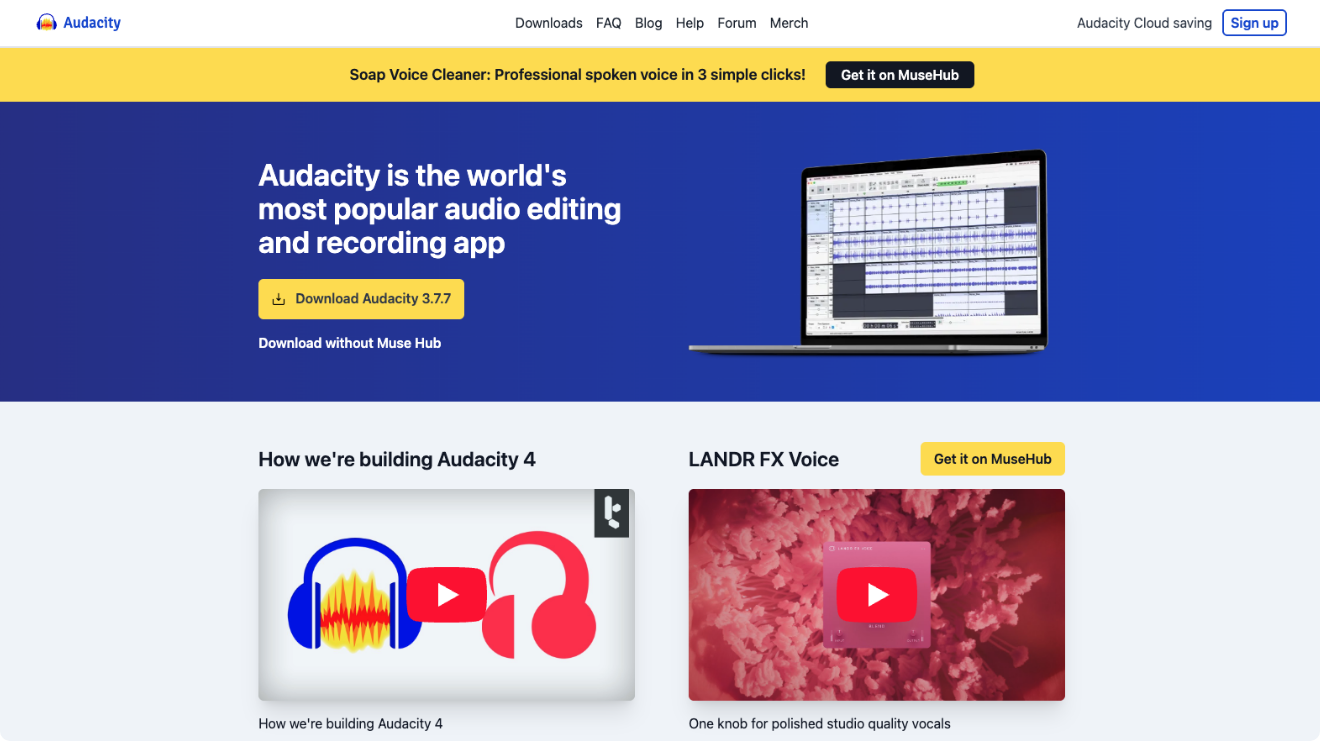
Audacity is a powerful, completely free open-source audio editor and recorder that exceeds when it comes to extracting clean audio from video files while offering deep editing tools for polishing the results. Available as a native desktop app for Windows, macOS, and Linux, lets you import video files, work on the audio waveform, and export high-quality tracks.
Features:
- Non-destructive multi-track editing with unlimited undo/redo
- Advanced effects like noise reduction, equalization, compression, reverb, and pitch/speed changes
- Noise gate, amplifier, normalization, and spectral analysis tools
- Built-in recording from microphones, system audio, or multiple sources
- Hundreds of free plugins for additional effects and analysis
- You get trimming, fading, envelope control, and label tracks for marking sections
Pros:
- An open source with no watermarks, ads, limits, or upsells
- Exceptional audio quality preservation and professional-level editing tools rivaling paid software
- Cross-platform support works identically on Windows, Mac, and Linux
- Handles very large files and long recordings without issues
- Active community with extensive manuals, forums, and tutorials
- Lightweight and fast, even on older computers
Cons:
- Requires separate installation to import audio from most video formats (one-time setup)
- There is no built-in video preview or timeline scrubbing while editing (audio-only focus)
- No real-time effects preview in older versions; some advanced features need plugins
- Destructive editing on tracks (though unlimited undo helps)
- Occasional stability issues with very difficult projects or certain plugins
Audacity is unbeatable as a professionally editable audio from videos completely free, with full privacy and cross-platform support.
5. HitPaw
Exceptional video to audio converter with advanced editing and enhancement
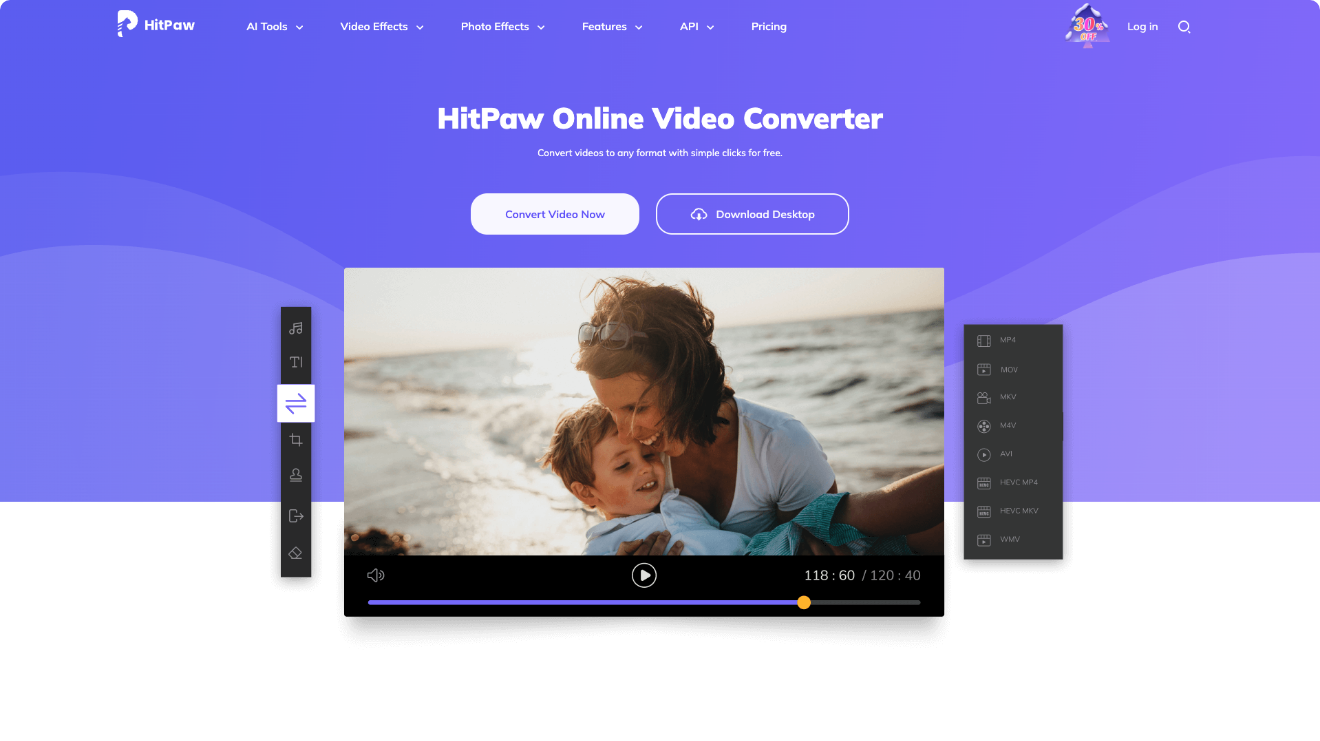
HitPaw Univd (previously known as HitPaw Video Converter) is a AI-driven desktop software for video and audio conversion, compression, enhancement, and editing, supporting over 1000 formats while emphasizing lossless quality and high-speed processing. It operates as a native app on Windows and macOS (no Linux or mobile versions). To extract audio from a video, launch the app, navigate to the Converter tab, add your video file(s) by drag-and-drop or browsing, select an audio output format like MP3 from the “Convert all to” menu, adjust settings if desired, and click Convert for quick results.
Features:
- Over 1000 video/audio formats supported, including MP4, AVI, MOV, MKV, FLV, WebM, MP3, WAV, AAC, AC3, and more
- Gives lossless conversion to preserve original quality, details, colors, and dynamic range
- GPU hardware acceleration (NVIDIA, AMD, Intel, Apple Silicon) for up to 170X faster speeds
- Built-in video editor with trim, merge, crop, rotate, speed change, filters, watermarks, and subtitle addition
- AI tools like speech-to-text transcription, vocal remover for isolating instruments or karaoke, noise reduction, video upscaling to 4K/HD, and face blur for privacy
- Video compressor to reduce file sizes without quality loss
- Additional utilities such as video to GIF creation, image conversion/editing, and screen recording
- Preset profiles optimized for devices like iPhone 16, GoPro HERO13, and 4K cameras
Pros:
- Intuitive, user-friendly interface that’s accessible for beginners while offering depth for pros
- Exceptional preservation of audio and video quality during conversions and extractions
- Lightning-fast processing with GPU boost and batch capabilities, ideal for large files or bulk tasks
- Versatile AI-powered features enhance audio beyond simple extraction, like noise removal and vocal isolation
- Cross-platform support for Windows and macOS with regular updates for new formats and improvements
- Free trial available for testing core functions without upfront cost
- Strong focus on privacy and security, with no adware, spyware, or viruses reported
Cons:
- Free version is heavily limited (e.g., converts only 1/3 of file length, potential watermarks, restricted features)
- Pricing can feel expensive for casual users, with subscriptions starting at $19.95/month and lifetime at $79.95-$119.95 depending on plan
- High system resource usage during conversions may slow down older or lower-spec systems.
- No native support for Linux, mobile devices, or web-based access
- Video downloading feature from sites like YouTube has been discontinued in recent versions
- Potential confusion with pricing tiers (Standard, Pro, Deluxe) and what each unlocks
- Steeper learning curve for advanced AI tools if you’re new to editing
- Occasional complaints about bundled software during installation or aggressive upgrade prompts
HitPaw Univd stands out with unrestricted, full-length conversions, lightning-fast batch processing but gets hold down due to paid plans.
Wrapping Up
A good video to audio converter is simply one that does the job reliably. The one that pulls out clear, high-quality sound from your videos without distortion, supports the formats you actually use, works quickly even on longer files, and doesn’t complicate things with ads, watermarks, crashes, or privacy risks. If you often deal with lots of video content you want to listen to on the go, search through easily, or repurpose without hassle, giving ReHear a quick try could make handling of all those clips feel a whole lot simpler and more useful.